Feature Extraction — Recording the Evidence
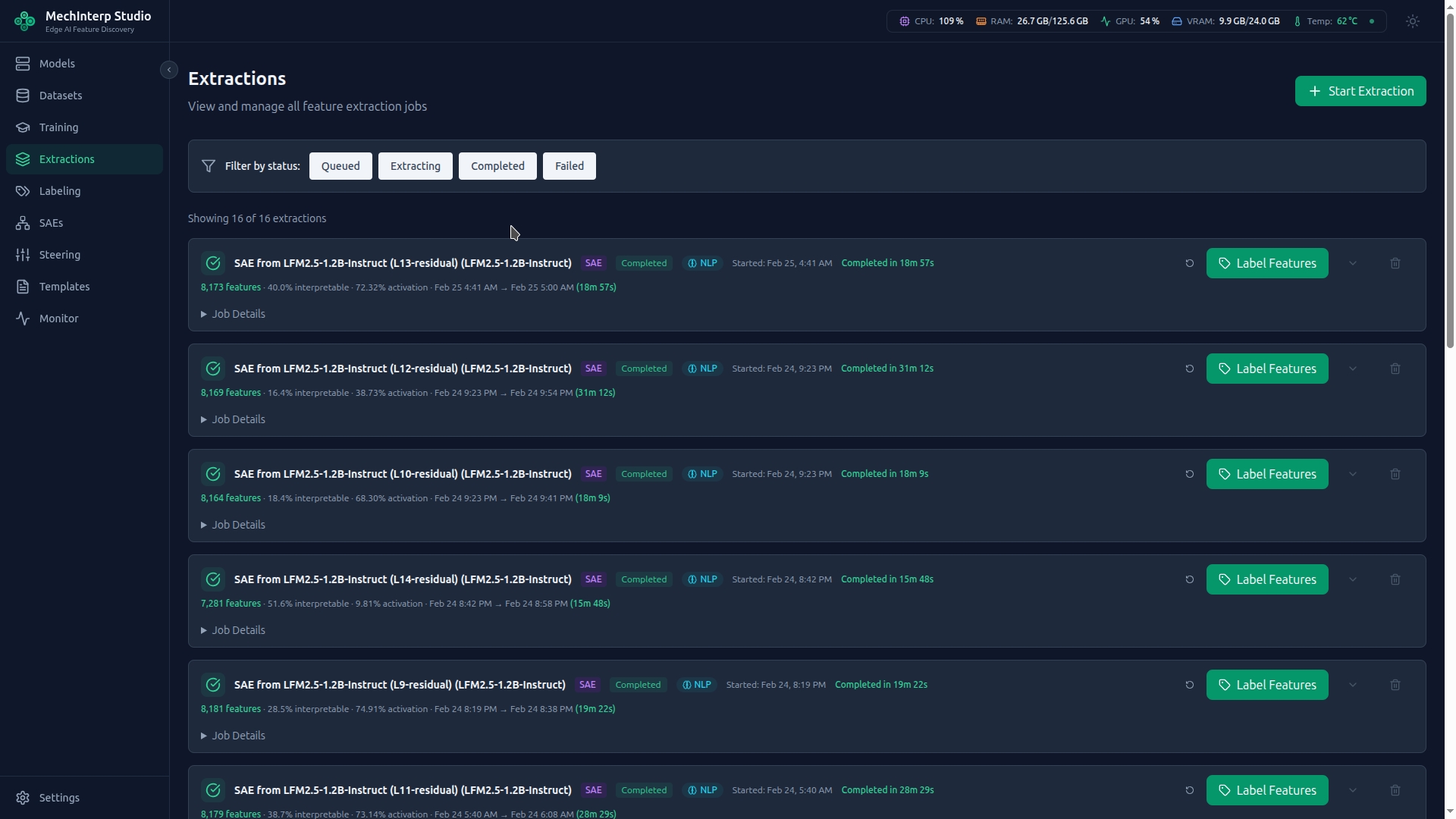
After training (or downloading an external SAE), run an Extraction Job to scan your dataset and record which features activate on which tokens.
Extraction Configuration
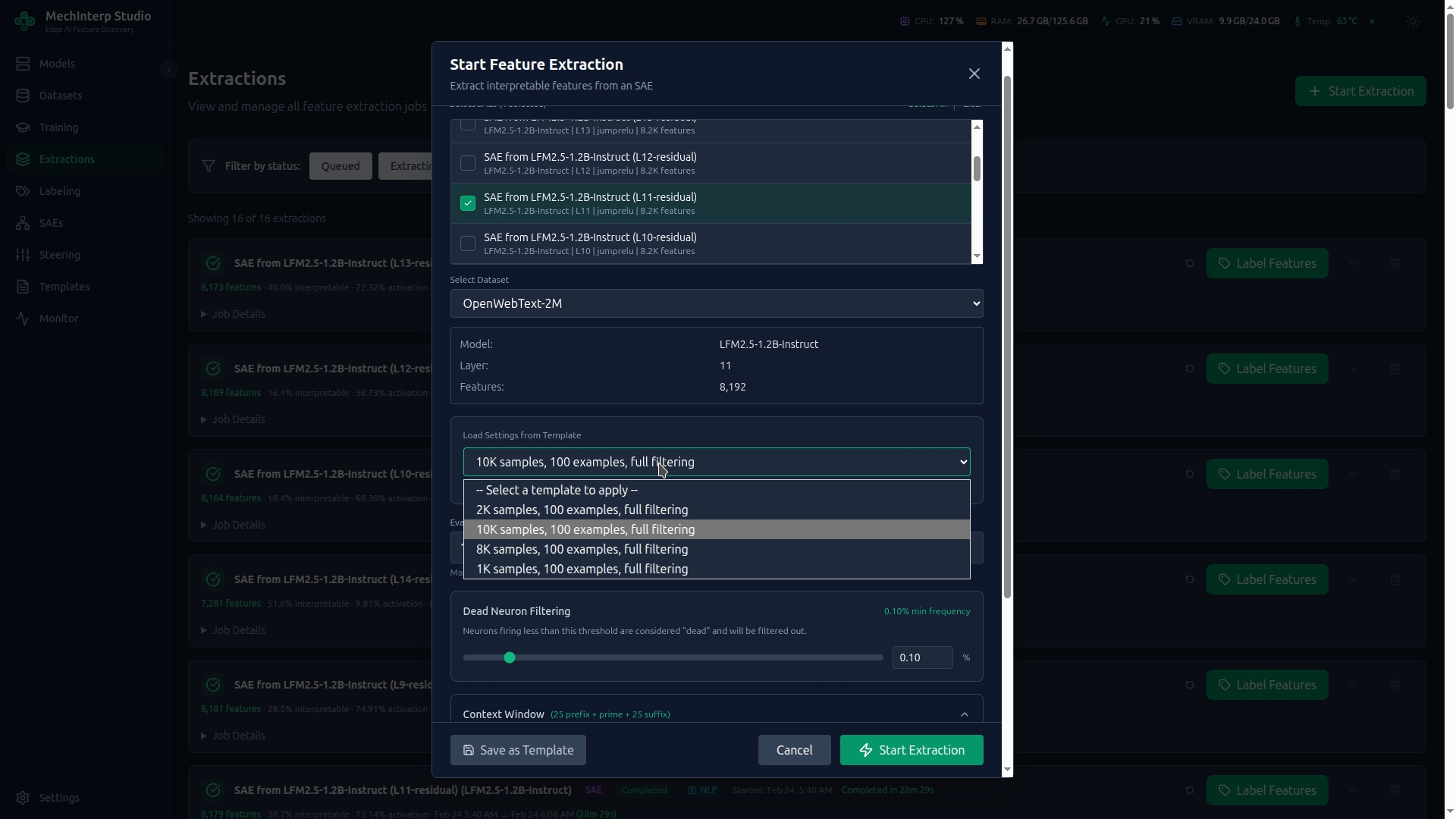
miStudio supports two extraction types: Feature Extraction (from a trained SAE) and Activation Extraction (raw activations for training).
Feature Extraction Configuration
Activation Extraction Configuration
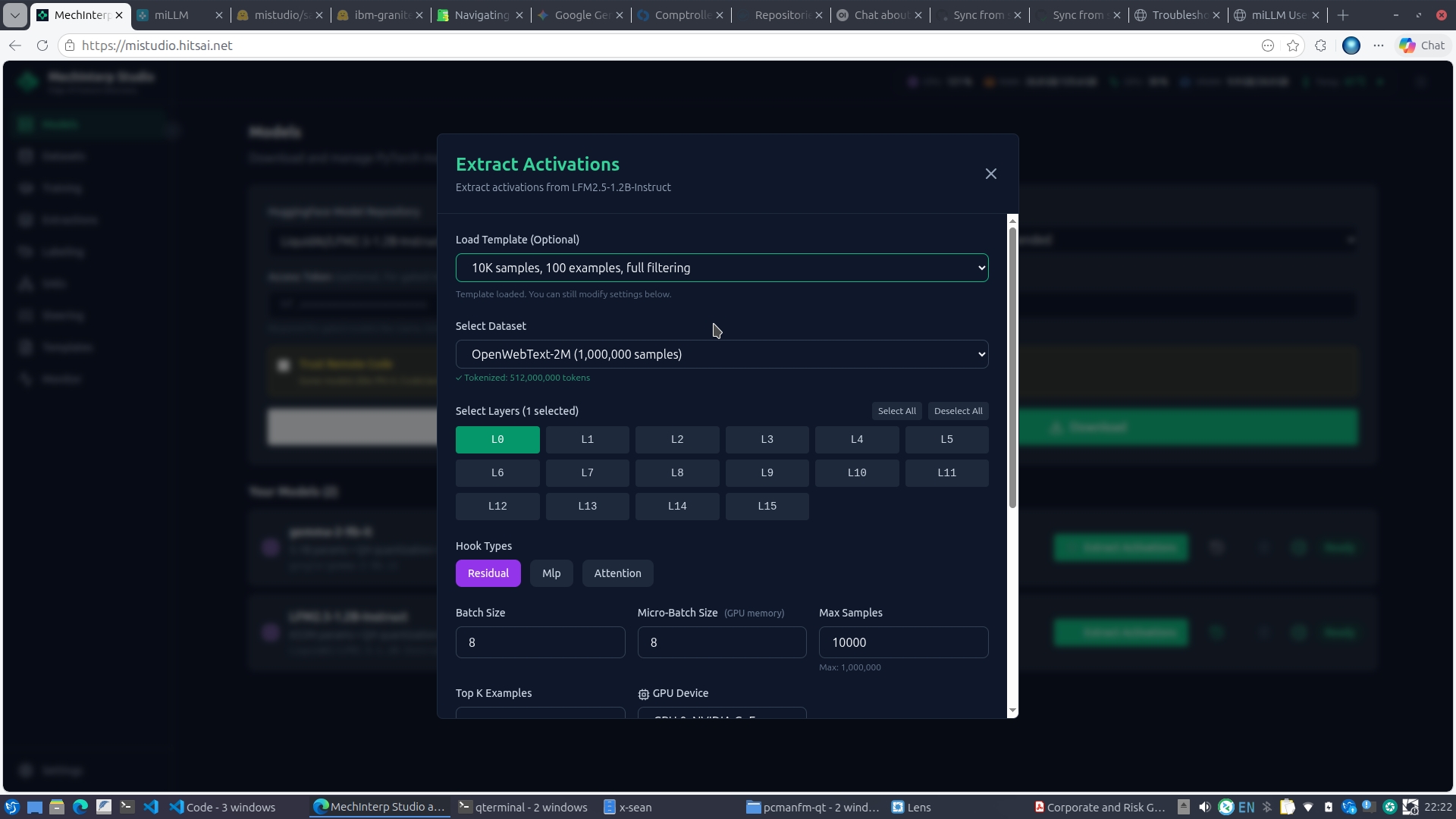
| Parameter | Default | Range | Description |
|---|---|---|---|
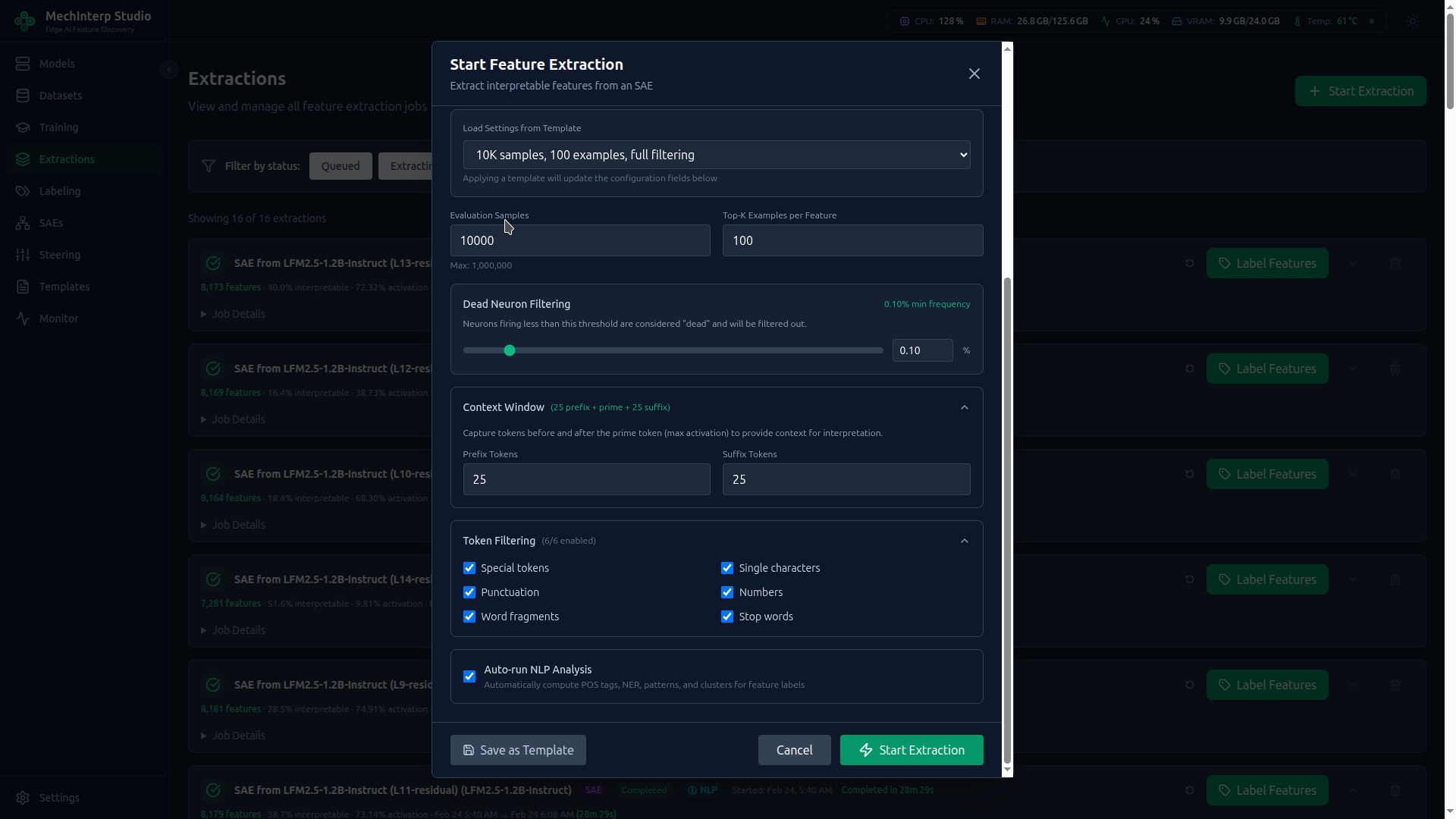
| Evaluation Samples | 10,000 | 100–1,000,000 | Dataset samples to scan. More = better coverage but slower. |
| Top-K Examples | 100 | 10–1,000 | Max-activating examples saved per feature. More = richer context for labeling. |
| Batch Size | Auto | 8–256 | Processing batch size. Auto-detected based on available VRAM. |
Token Filtering
Control which tokens appear in activation examples. These filters affect both extraction and labeling:
| Filter | Default | Effect |
|---|---|---|
| Special Tokens | ✅ On | Removes <s>, </s>, <pad>, etc. |
| Single Characters | ✅ On | Removes single-character tokens |
| Punctuation | ✅ On | Removes pure punctuation tokens |
| Numbers | ✅ On | Removes pure numeric tokens |
| Fragments | ✅ On | Removes BPE subwords like "tion", "ing" |
| Stop Words | ❌ Off | Optionally removes "the", "and", "is", etc. |
Keep most filters ON for cleaner labeling results. Only disable fragment filtering if you're specifically studying tokenization patterns. Enable stop word filtering when you want labels focused on content words.
Context Window
Each activation example includes surrounding context for interpretation:
| Setting | Default | Description |
|---|---|---|
| Prefix Tokens | 25 | Tokens shown before the activating token |
| Suffix Tokens | 25 | Tokens shown after the activating token |
The asymmetric window (25+25=50 tokens of context) is based on research showing this window size captures sufficient context for accurate labeling.
Dead Feature Filtering
Features that activate too rarely are filtered:
| Setting | Default | Description |
|---|---|---|
| Min Activation Frequency | 0.001 (0.1%) | Features firing less than this rate are excluded as "dead" |
Browsing Extracted Features
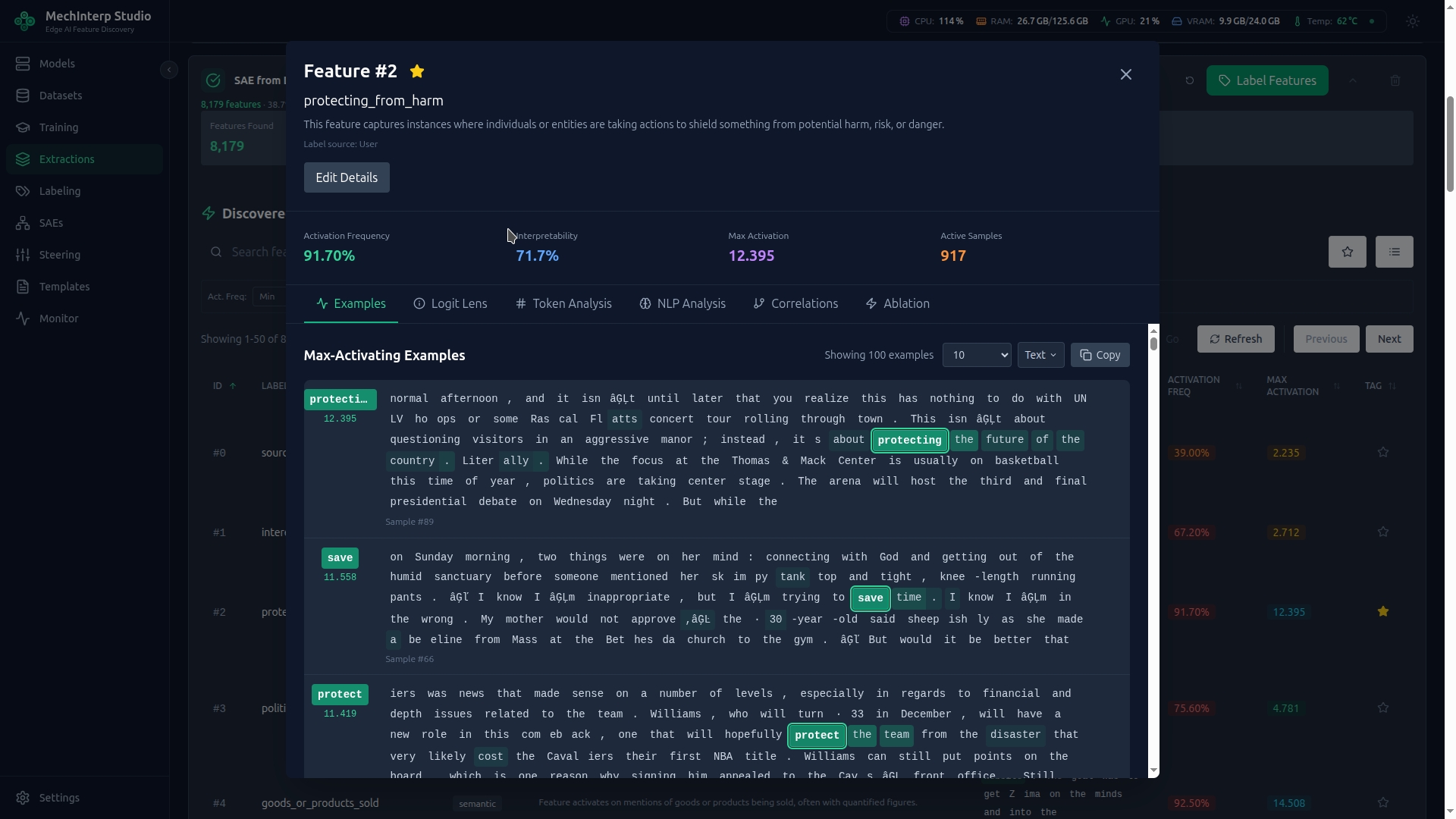
Once extraction completes, browse the discovered features in the feature browser:
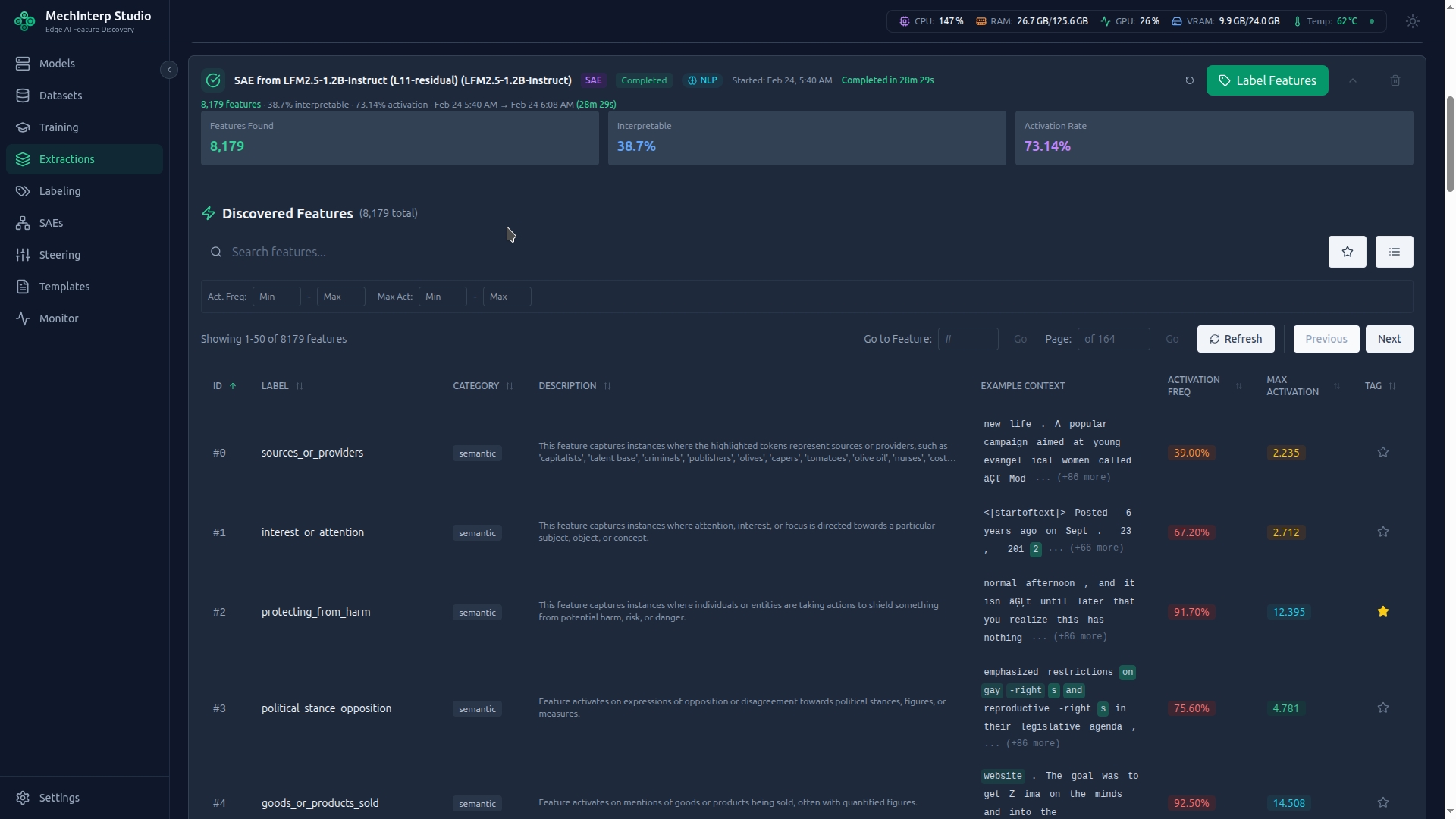
Click any feature to view its activation examples, token context, and detailed statistics: